Creating a Search Ads Campaign
How to Define and Run a Search Ads Campaign
The general logic for defining a Search Ads campaign is as follows:
The developer defines a Search Ads campaign for an app from the list of apps in their developer account. In this campaign, they specify several keywords and define a price for each keyword. When a user searches for a word defined by the developer in their campaign, the app's advertisement related to that specific word or phrase is displayed. If it results in an install, the amount specified for that word is deducted from the advertising account balance.
The point is that a Search Ads campaign contains different words with varying install prices. The campaign's behavior and results therefore differ across words, and when a developer or administrator examines a Search Ads campaign, they see different results and reports for each defined word. We will expand on this below.
When defining a Search Ads campaign, there are several terms and definitions to be aware of:
- Start and End Dates:
The developer specifies when the campaign begins and ends. The end date can remain open and unspecified. - System Keywords (Smart):
Selecting this option lets Myket's intelligent system add relevant keywords to the campaign based on your app and similar apps. When using system keywords, the developer does not need to enter any words themselves. The advertising system intelligently selects a list of keywords relevant to the app and uses them to run the campaign. - Install Cost Cap or Install Price:
The maximum amount the developer is willing to pay per successful install. The higher the specified amount, the greater the chance of your app's advertisement being displayed. The developer sets this price when creating the campaign. - Average Price and Minimum Price:
For each word, the advertising system determines and reports its average price based on the competition and searches for that word or phrase. Developers can enter a price below, equal to, or above the average. A lower price means a lower chance of the advertisement being shown. An equal or higher price offers a reasonable chance of being shown, but the advertising will cost more. The minimum price for all apps is 6,000 tomans. The minimum price for all games is 3,000 tomans. - Keywords:
Keywords manually defined for the campaign by the developer. - Match Type:
This specifies how the phrase searched by the user matches the defined keyword. “Similar” mode lets the app participate in auctions for phrases similar to the keyword as well. For example, selecting Similar for the keyword “bank” enters auctions for words such as “bank,” “mobile banking,” “internet banking,” “Resalat Bank,” and so on. Selecting “Exact” for this word only enters auctions for searches for “bank.” - Daily Budget Cap:
Entering a specific daily budget sets the campaign's spending limit for a day. Once the daily cap is reached, the campaign stops. The daily budget can remain undefined and unlimited. - Campaign Budget Cap:
Entering a specific campaign budget sets the campaign's total spending limit. Once this budget cap is reached, the campaign stops. The total campaign budget can remain undefined and unlimited. - Tracker:
Trackers are optional for developers. Using different trackers lets developers monitor their app advertisement's impressions, clicks, app page views, and successful installs through a separate system: the tracker.
Trackers are separate services. The advertising panel only provides the ability to use them and does not provide support for them. Developers can receive fully detailed campaign performance reports through their advertising panel without using a tracker.
Note: As mentioned, the “end date,” “daily budget,” and “total campaign budget” parameters can be unlimited. In this case, the campaign continues as long as the developer's advertising panel has credit. If an “end date” or “total budget” is defined, the campaign ends when that limit is reached. If both are defined, whichever is reached first determines when the campaign ends.
If a daily budget is defined, the campaign stops being displayed for that day once the day's budget cap is reached.
Defining a Search Ads Campaign
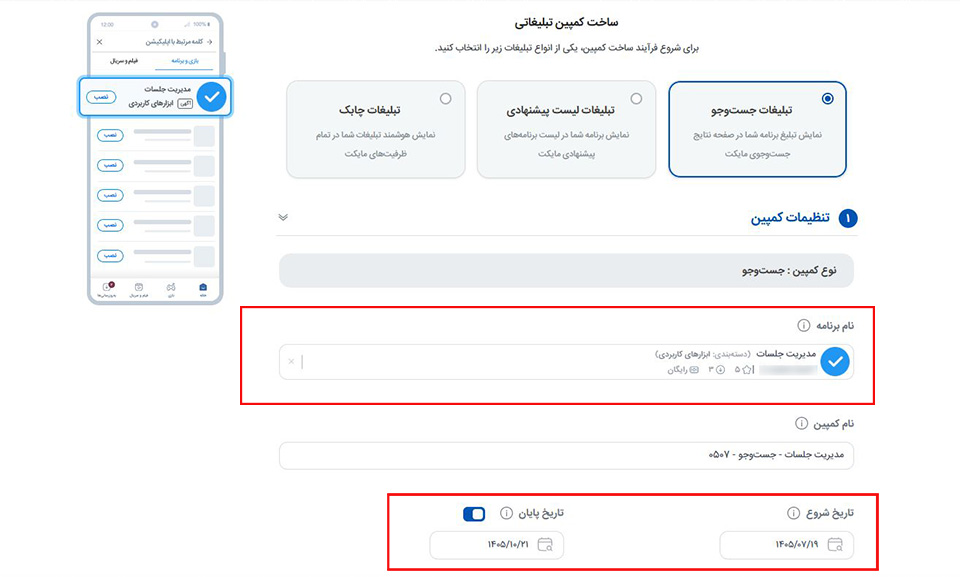
After entering the campaign definition page, select the app name from the developer's app list and then define the start and end dates, if desired. The developer then proceeds to the next stage, “Campaign Budget,” to define the details of their Search Ads campaign.
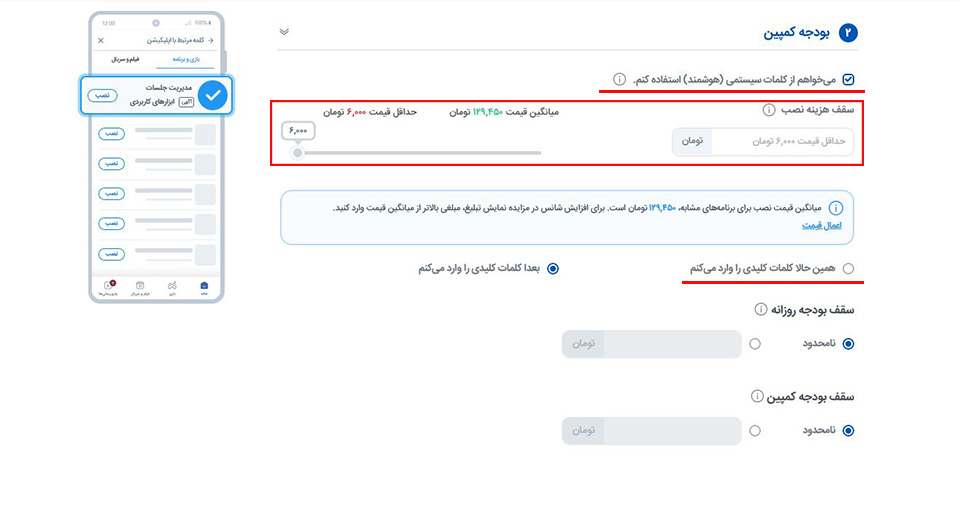
The System Keywords option is selected initially. If the developer wants to use system keywords, they must enable its checkbox and define a price.
Manual keywords are also available further down. If the developer wants to use keywords, they must enable the indicated option. They can also choose not to select keywords at this stage and define keywords for their Search Ads campaign later, if desired.
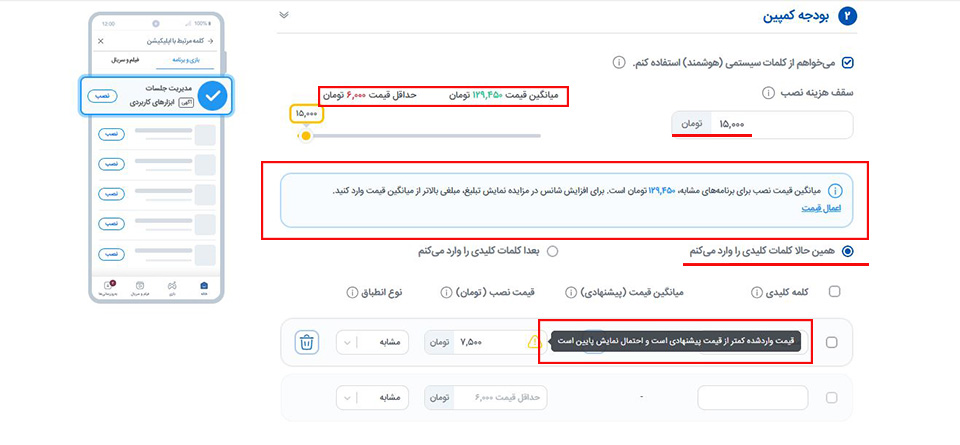
Pay attention to the details in the image above.
For system keywords, the system reports an average price of 129,450 tomans. We entered a price of 15,000 tomans, which is lower than the suggested price but higher than the minimum price.
The system indicates that the price is below average and the chance of being displayed is lower.
In this image, we have also enabled “Keywords,” adding a section for entering keywords. We enter the desired keyword in the “Keyword” field. The system then reports the suggested price, and we enter our own price of 7,500 tomans. Again, the system indicates that the price is below average and the chance of being displayed is lower.
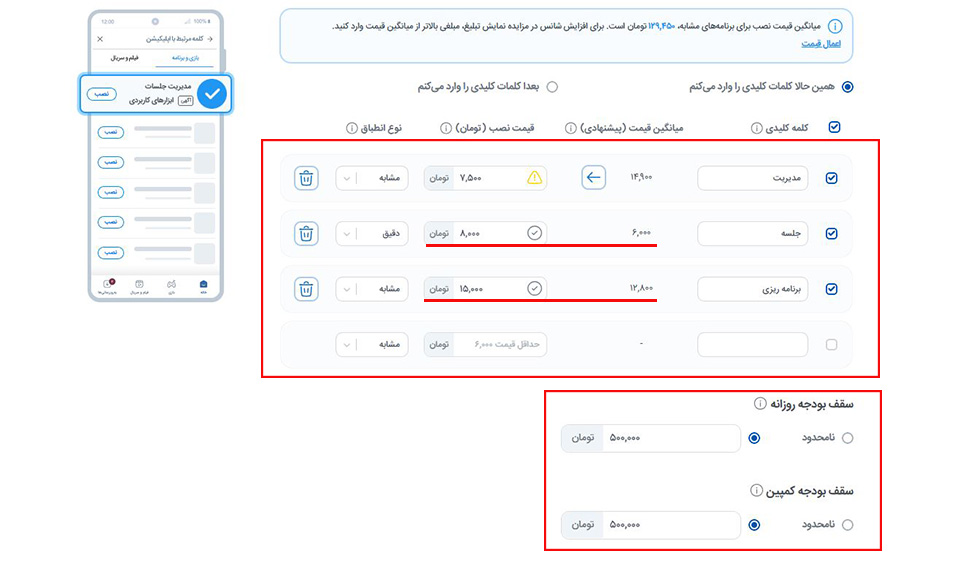
We have added several more keywords and entered different prices. Match types have also been specified: some Exact and some Similar.
The next stage is the budget. As mentioned, a budget may or may not be defined; it is optional.
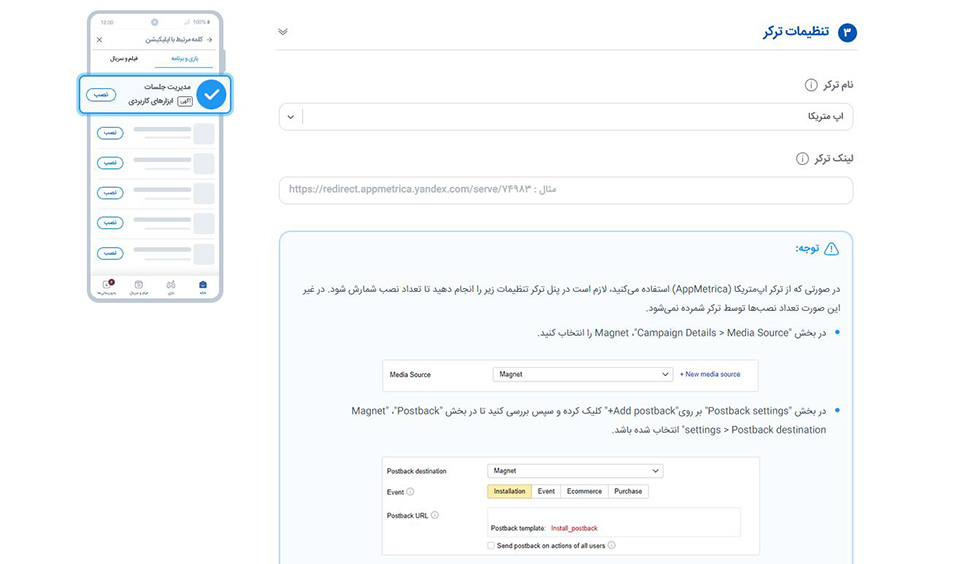
A tracker is defined in the next stage.
Defining a tracker is also optional. If the developer intends to define one, the details and instructions are provided.
Finally, after the campaign is saved and activated, when users search for the keywords defined for an app or the words and phrases in its system keyword list, the app's advertisement enters an auction according to the match type defined for that phrase. If it wins, the advertisement is displayed.
This auction takes place for the word searched by the user, between campaigns for two or more apps using the same word. The winning campaign's advertisement is displayed.
An explanation of how the auction works and how to win it will be provided later.