Keyword Management
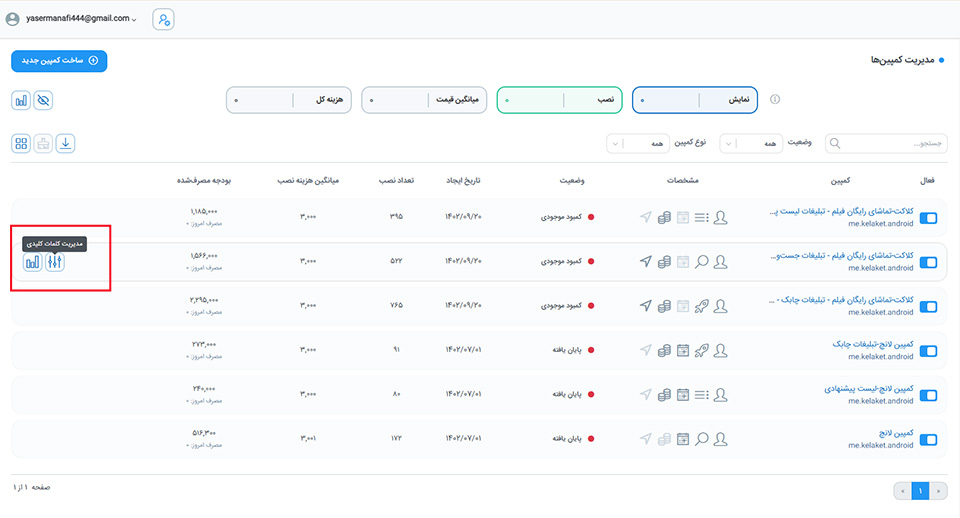
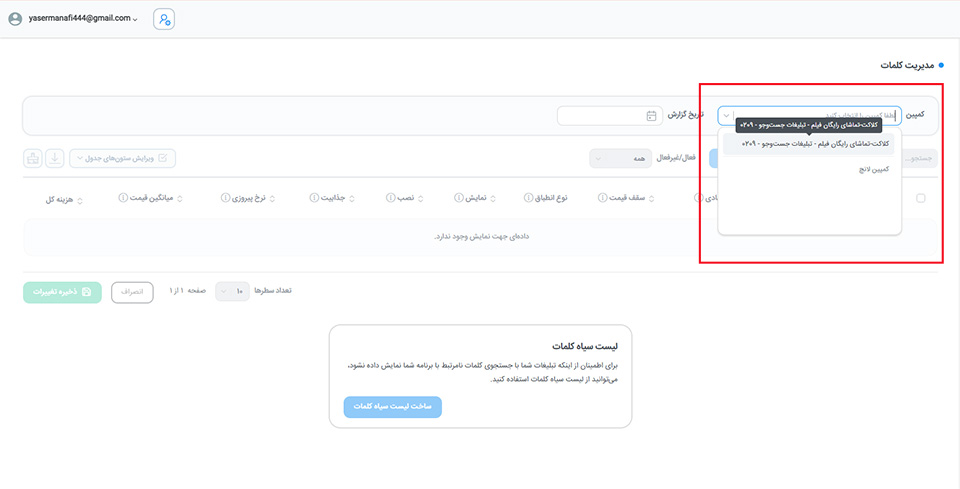
After opening a Search Ads campaign's page, we can manage its keywords. Either click “Manage Keywords” beside “Report” in the campaign's row in the campaign list, or open “Manage Keywords” and select the desired campaign from the list at the top of the page:
In this section, developers can edit their campaign's keyword list, view the performance of each word if keywords have been defined, add keywords in bulk, export their campaign's keywords for use in another campaign, or define a blacklist for system keywords.
In the keyword reporting columns, two parameters are added alongside those available in campaign reports:
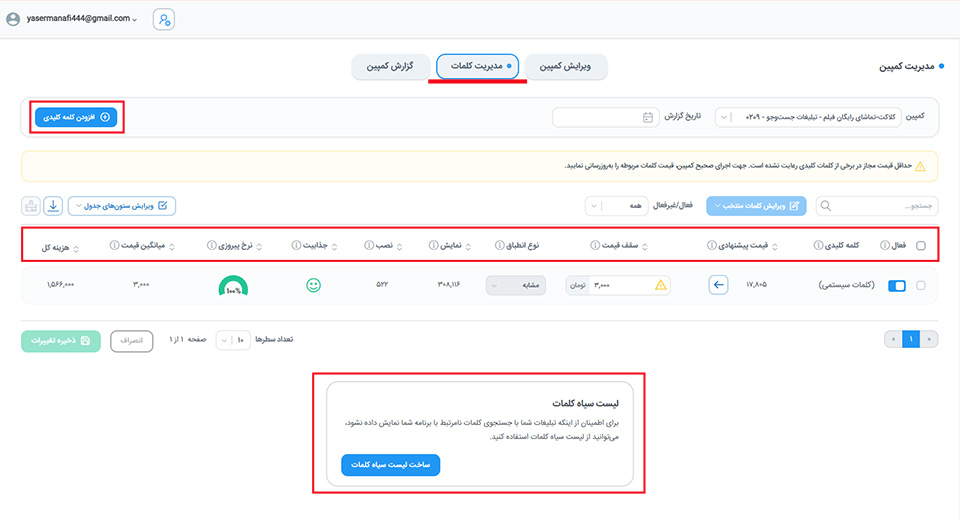
- Attractiveness: For each keyword, attractiveness indicates the relative status of your app advertisement's conversion rate in searches for that word. For example, if a keyword's attractiveness is “Good,” the developer's advertisement for that keyword performs better than the average conversion rate across all apps
- Win Rate: This value shows the percentage of auctions won for each word over the past 7 days. For example, if the word “app” has a win rate of 70, the app's advertisement was shown in 70 percent of searches for phrases containing “app.” Using the keyword blacklist and increasing the install price can improve your win rate.
The “Add Keywords” section is used to add keywords manually or in bulk:
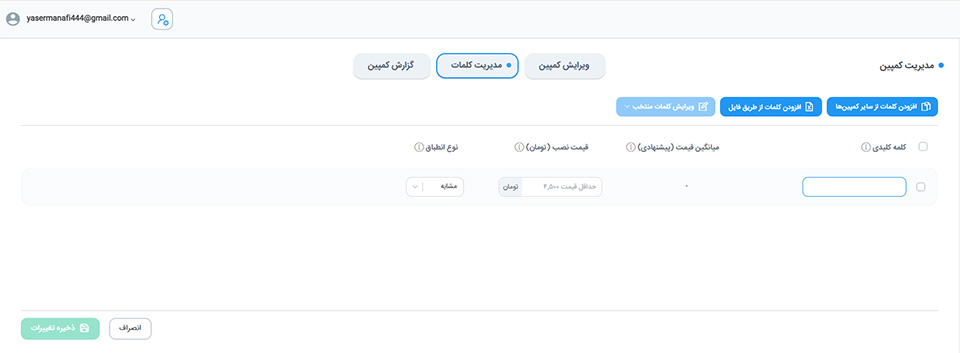
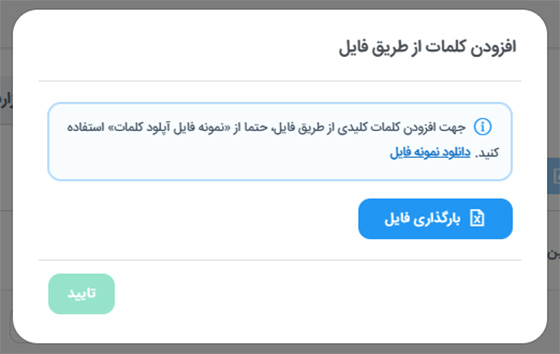
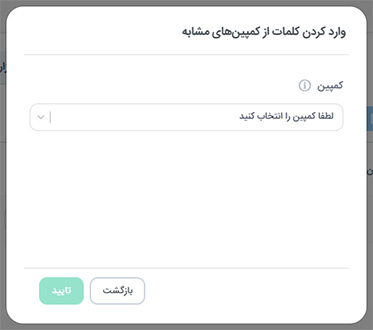
Both methods are used to add words.
In the Add from File section, the developer prepares a file containing their desired keywords based on the provided “Sample File,” then uploads and applies the prepared file.
In the Add from Other Campaigns section, the developer selects another campaign in their advertising account and adds its keywords to the current campaign.
Developers can edit the selected words in the next stage if desired.
The “Keyword Blacklist” option relates to the use of system keywords. As we know, when using a system keyword list, the advertising system automatically assigns the campaign a list of words related to the app and runs the developer's campaign.
Through this option, the developer can specify words that, if present in the system keyword list and searched by a user, should not display the advertisement; the app's advertisement does not enter the competition for these words.
For example, words that may not produce good installs for the developer and reduce the conversion rate can be candidates for the blacklist.