Developer Panel Guide
Myket's developer panel provides tools for publishing, updating, and supporting your app and tracking its progress. It gives you access to sections such as Apps, Tickets, Finance, Profile, Advertising, Backlink, and Agents. The different sections are explained below:
Dashboard
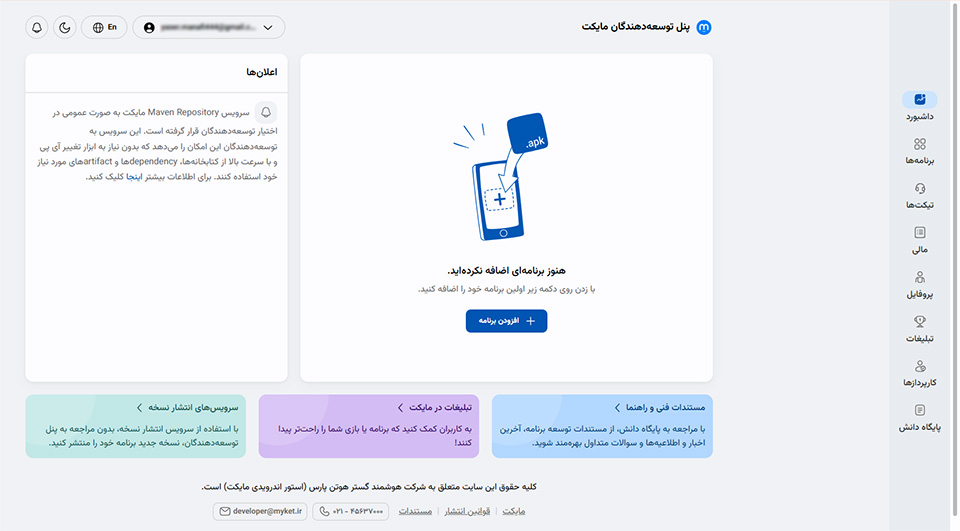
This is the developer panel's initial page. Myket's general announcements for developers appear here. For additional information and guidance, use Technical documentation and guides, Advertising on Myket, and Version publishing services.
Apps
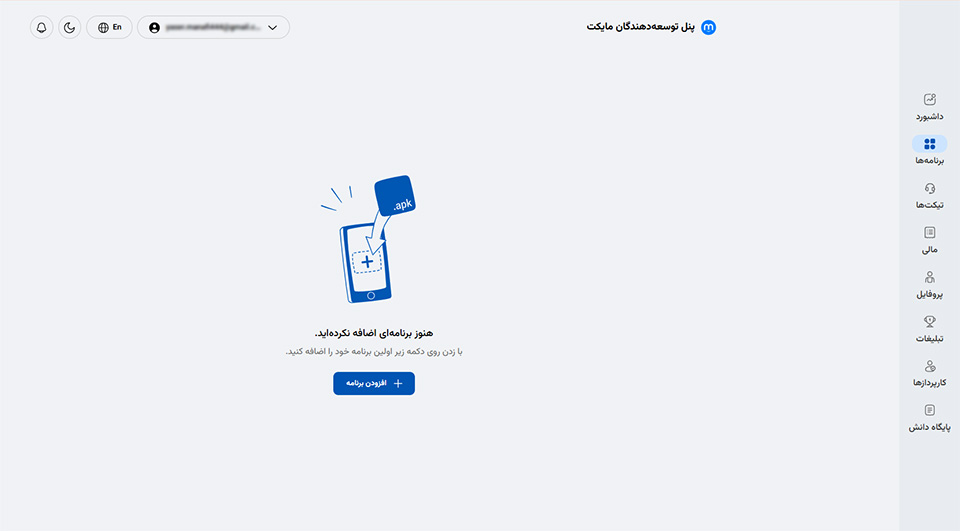
The developer panel menu appears on the right side of the page. After selecting “Apps,” the new window provides an “Add app” option. Selecting it opens the app upload window.
Add your app's file in the designated area by selecting it or dragging and dropping it into the box. Then select Save and continue to place your app in the review queue.
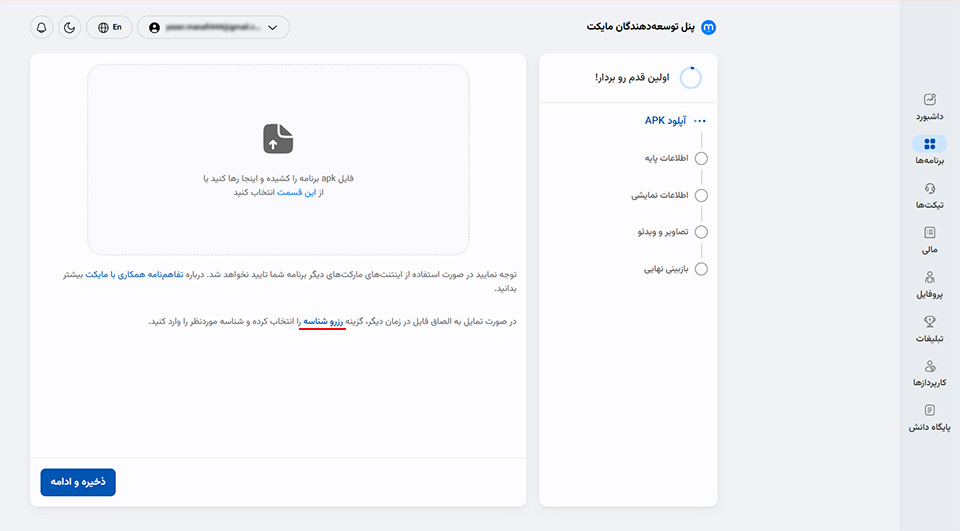
If you intend to add the app file later, select Reserve identifier and enter your chosen identifier in the field to reserve it on Myket until your app version is ready to upload.
Tickets
Submit any questions to developer support by creating a ticket. This page also lists all your tickets.
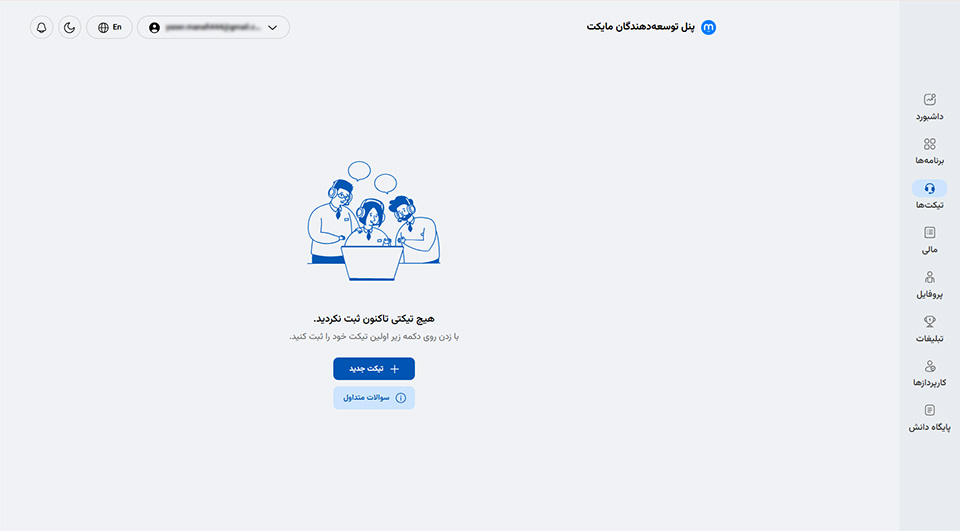
To create a ticket, select New ticket, complete the required fields in the new window, and send it to Myket developer support.
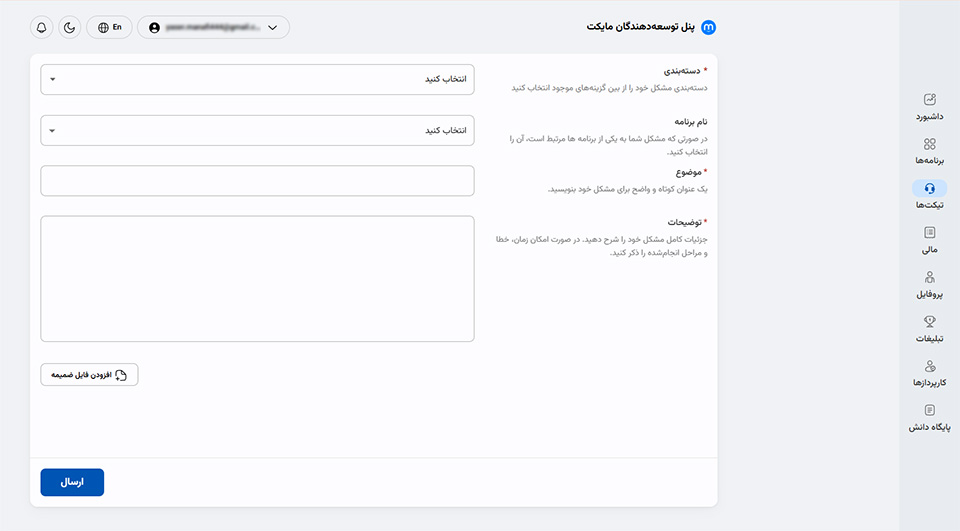
Using questions frequently asked by other developers, Myket helps developers find answers quickly before submitting a ticket. When you select a Category for your question, a box displays related questions and links to articles that may resolve the problem.
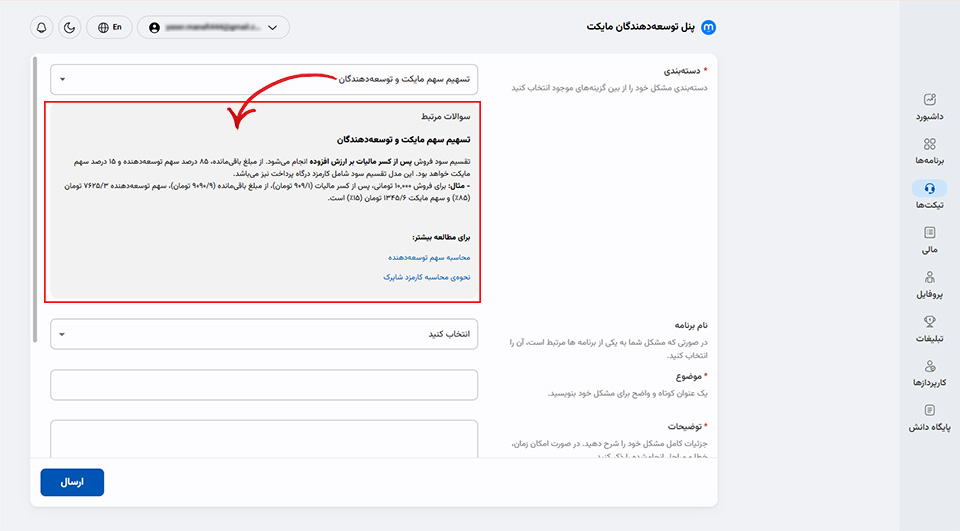
If the answer is not in this list, complete the ticket form and select Send to submit your question to developer support, then wait for a response.
Finance
If your app is paid or offers in-app purchases, this section shows all transactions for purchases of its products and lets you request settlement with Myket.
For more guidance, read Financial Settlement.
Profile
Here you can view the information entered during registration and edit it if necessary.
The profile contains the developer's confidential and display information.
Confidential Information
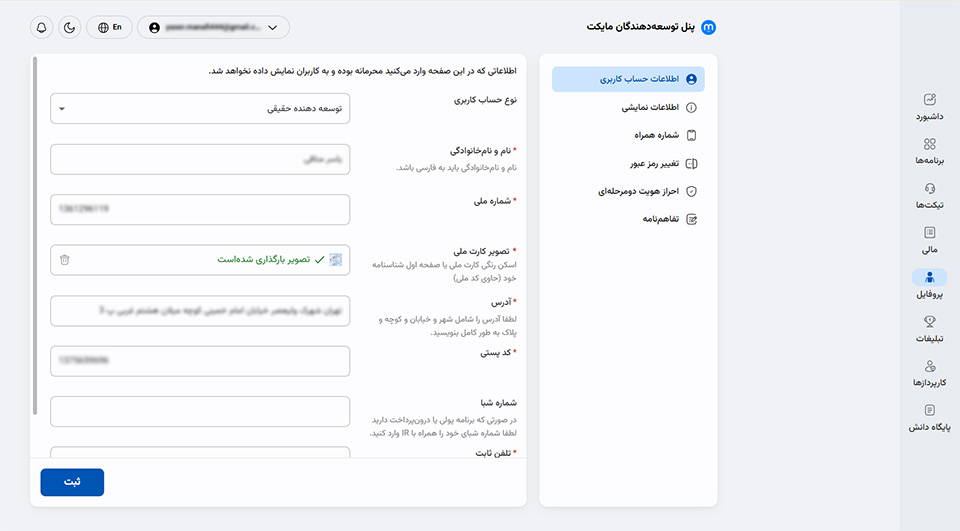
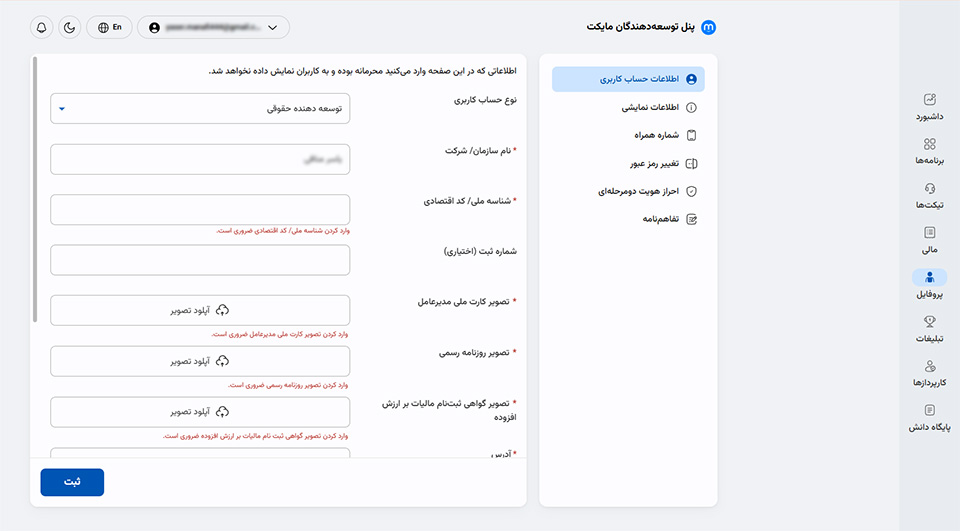
Enter details such as your first and last name and contact number here. This information is confidential and is not shown to users. All fields must be completed correctly and fully for your developer account to be approved.
- If registering as an individual, your first and last name and national ID number must be correct and match the account holder's national ID image and IBAN. Only if you do not have access to your national ID card may you use an image of your birth certificate. All fields, such as residential address, contact number, and postal code, are mandatory. Provide your full address; if it lacks a component such as a building number, explain that in parentheses.
- If registering as a legal entity, the requested information is mandatory, including the company's Official Gazette image, VAT registration certificate image, CEO's national ID card image, company national ID, and economic code.
Display Information
This information is shown to users and lets them contact you.
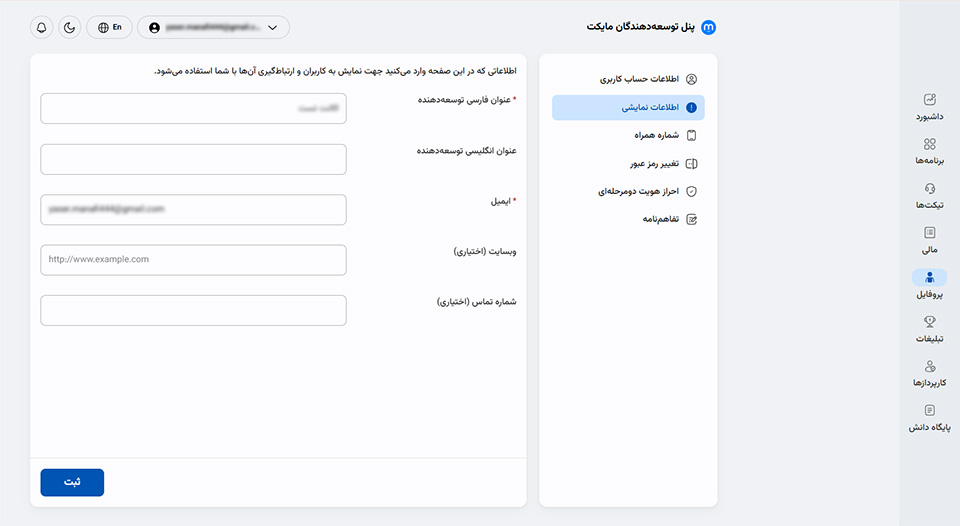
After you edit information, Myket's developer team must approve the changes before it is updated.
Advertising
This page provides access to your advertising panel, where you can view and manage Myket advertising campaigns, create new campaigns, review their performance, and manage their finances.
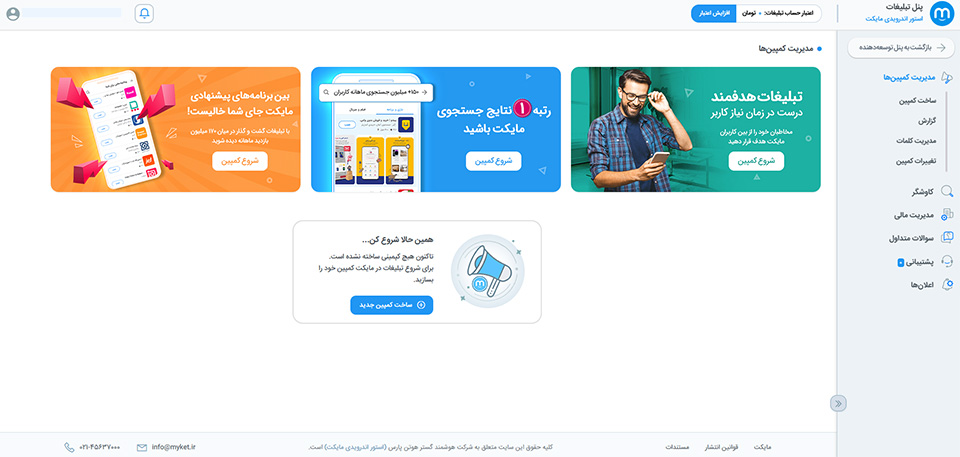
Developers can currently advertise applications through three channels: Search Ads, Recommendation List Ads, and Agile (Smart) Ads.
In brief, a developer adds credit to the advertising panel, creates and runs an app campaign within that budget, and the advertisement is displayed on Myket. For each successful install resulting from the advertisement, a predetermined amount is deducted from the developer's balance. These three advertising types are explained below:
Search Ads
In a search advertising campaign, developers specify words or phrases in advance. When users search for those terms, the app's Ad appears among the organic search results for that word or phrase.
What Are Organic Results?
When a user searches for a particular phrase on Myket, its search engine displays results based on parameters such as title relevance, download count, app or game rating, user comments, and how up to date the app is. Organic results depend solely on Myket's search algorithm, and search-result management is entirely handled by Myket.
Recommendation List Ads
Recommendation list advertising, or Recom, generally displays an app with an active campaign in a designated “Recommended apps” area on Myket and on similar or related app pages.
Recom campaigns are much less complex and detailed than Search Ads. An app simply needs an active campaign, after which it competes for display in the “Recommended apps” area of a similar or related app's page.
If the advertisement is displayed and results in an install, the price set by the developer is deducted from their advertising balance.
The allocated advertising space is usually on app pages, titled “Recommended apps” and marked with an “Ad” tag.
Agile Ads
Agile campaigns do not offer a new type of advertising service. Instead, when an Agile campaign is created and run, Myket's advertising system displays the app's advertisement across all available advertising inventory, including both Search Ads and recommendation lists.
Agile campaigns do not allow manual keyword lists. A system-generated keyword list is automatically assigned to each app's Agile campaign and used for Search Ads.
An Agile campaign uses Search Ads and Recom inventory simultaneously. An important difference from Recom campaigns is that developers may pay less when their app appears in Recom inventory through an Agile campaign.
For more information, read the articles on “Advertising on Myket.”
Agents
The Agents section improves management of apps in the developer panel. You can register someone as an agent and assign permissions appropriate to their work. An agent can receive different types of access to one or several apps, with different permissions for each app.
For more information, read Account Agents.